CLIENT SETUP
Copy your subscription link from the dashboard, then import it into your client.
- REPAIR / REALITYXray 25.3.6
Windows Xray repair package
Use this if v2rayN is already installed and stopped working after a core update. It backs up the current xray.exe, restores the onda-tested version, and reduces the chance of another overwrite.
File10 MB - RECOMMENDED / WINDOWS 64-BIT7.20.4
v2rayN for Windows
Primary client for Windows 10/11. Unzip it, then follow the visual guide below to import your subscription link.
File143 MB
Windows visual guide
[ V2RAYN / PT-BR ]The screenshots are annotated in pt-BR and the v2rayN interface is in English. Follow the images to import the link, update the subscription, choose a node, and enable system proxy.
- STEP 01 / 04
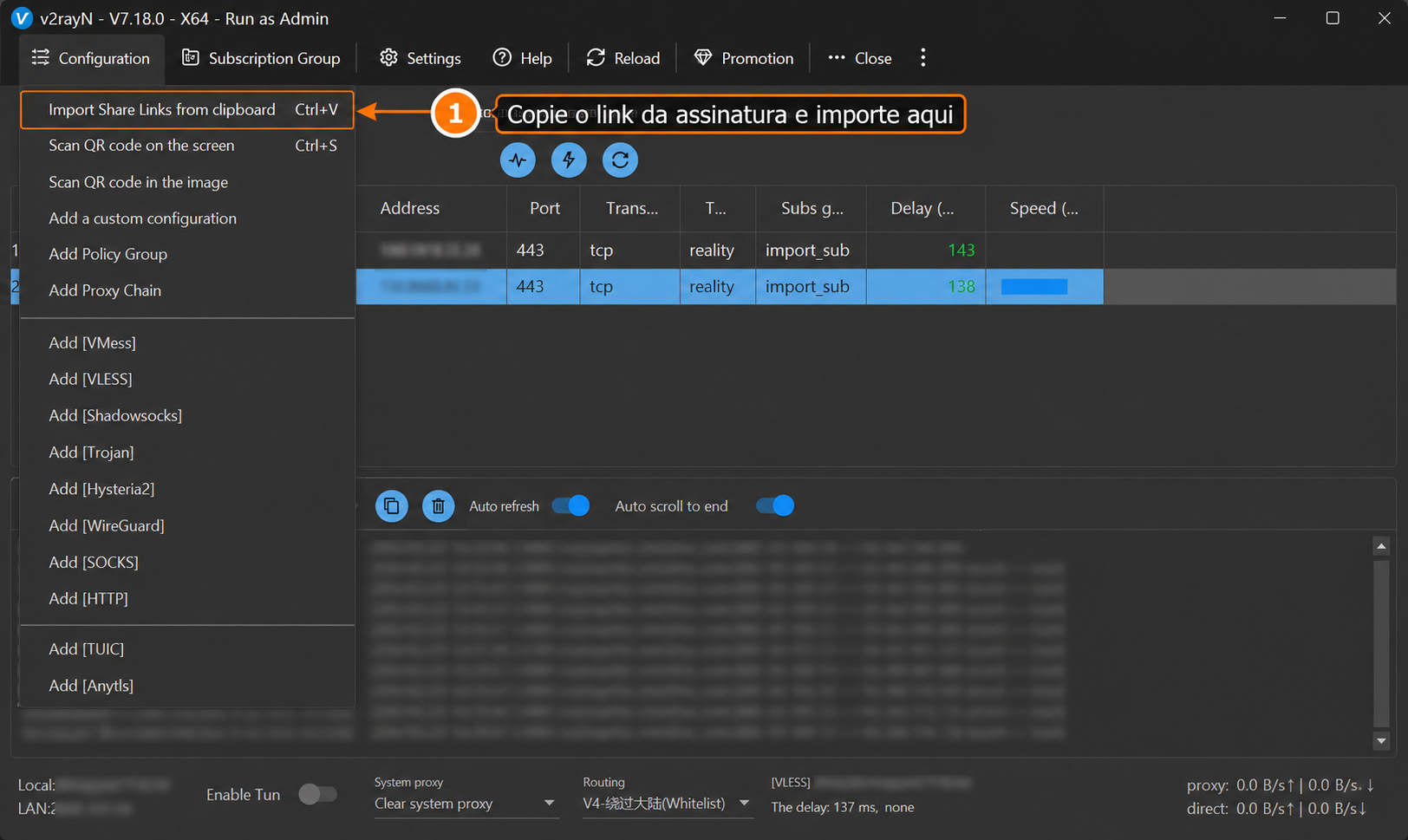
Import the subscription link
After copying the dashboard link, import it from the Configuration menu.
- STEP 02 / 04
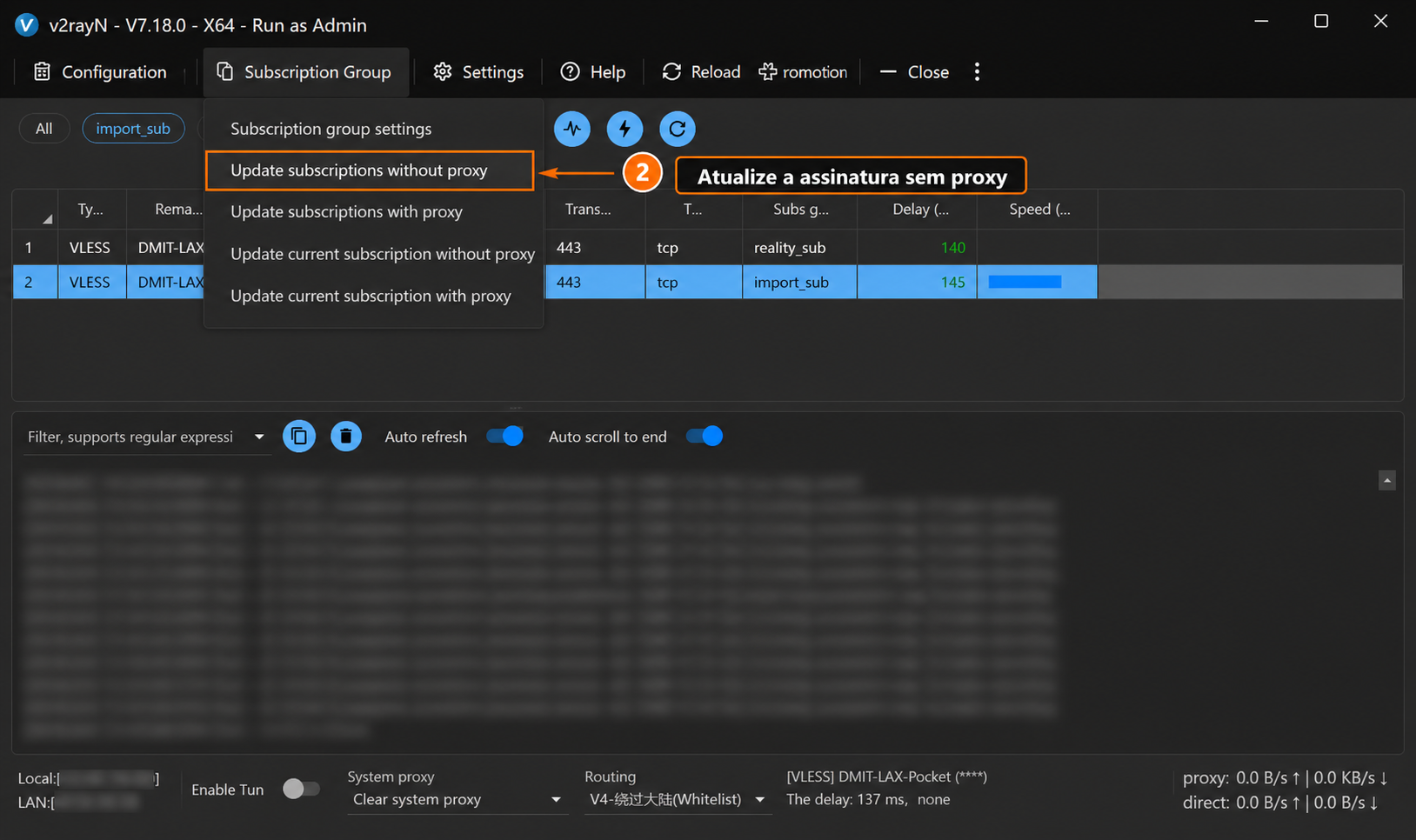
Update the subscription
Refresh the subscription so the node list appears.
- STEP 03 / 04
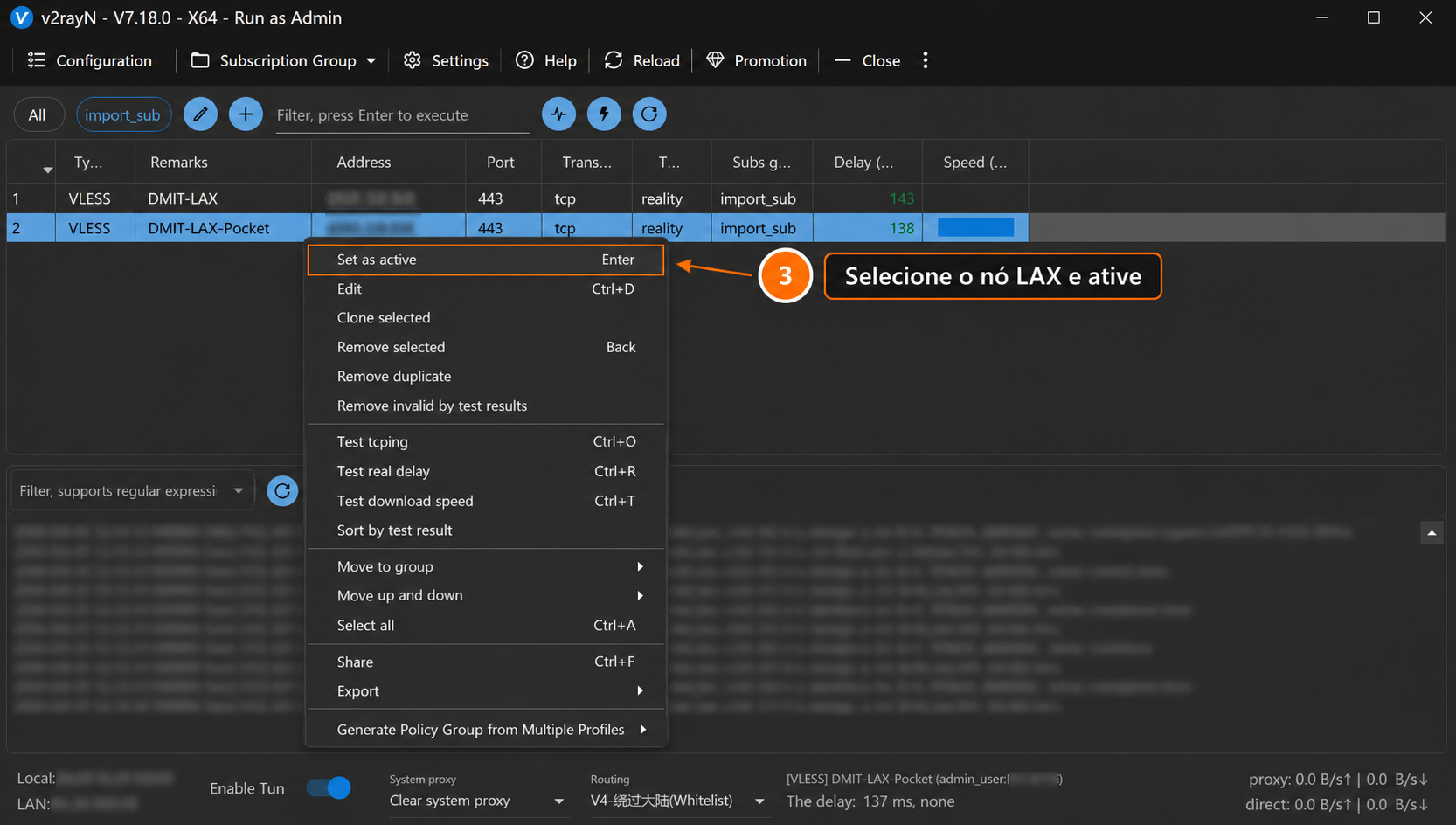
Select an Osaka node
Select Bandwagon-Osaka, then set it as active.
- STEP 04 / 04
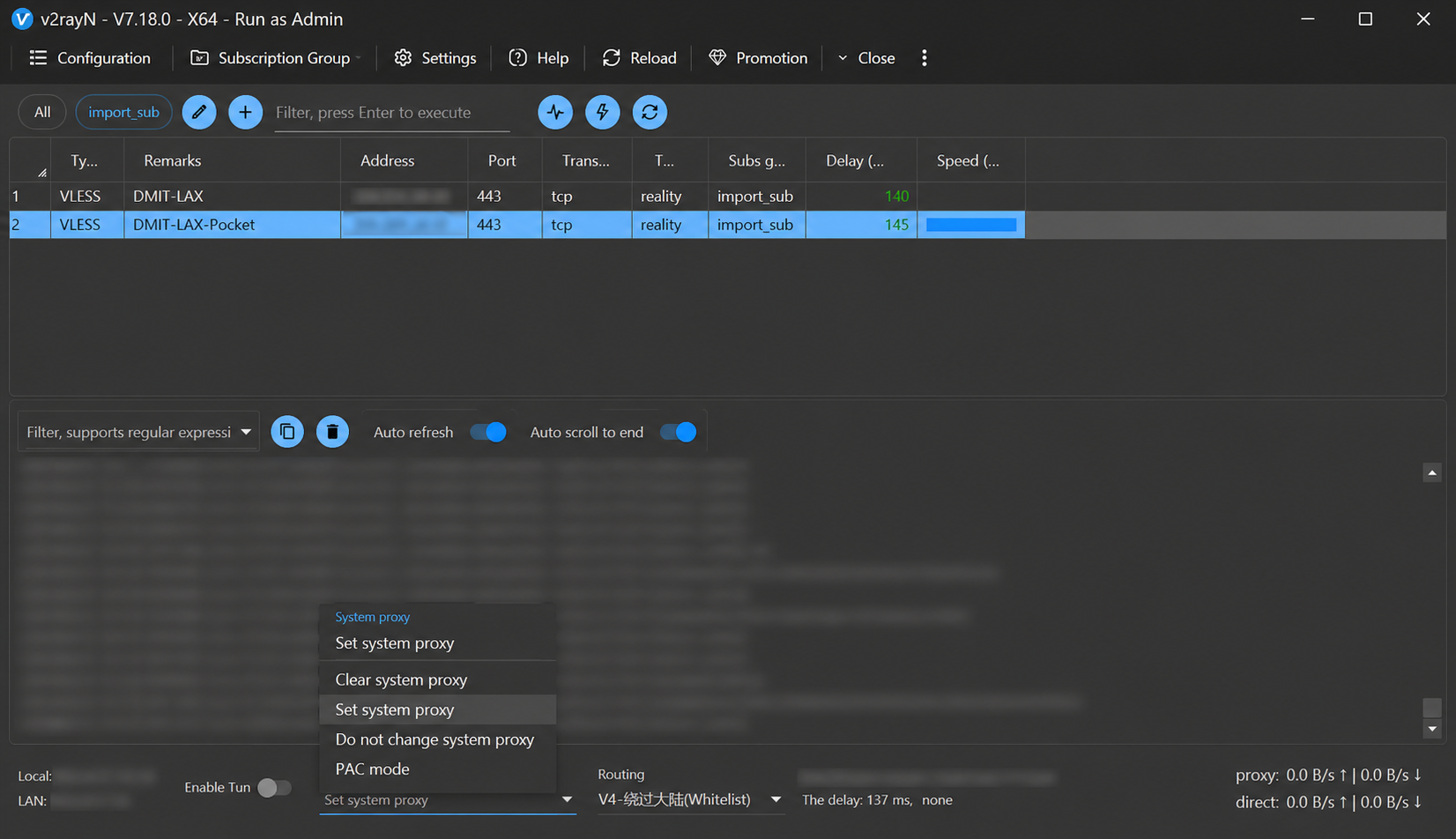
Enable system proxy
For normal use, keep Tun off and use Set system proxy.